|
To install Admin Mod, you will run a friendly little VBScript that will
greatly simplify the process of installing the Admin Mod. If you are used
to the script that was included with version of Admin Mod 2.10, we think
you will be pleasantly surprised.
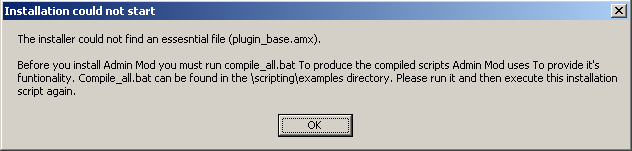
If you have unzipped the Admin Mod files properly you should never see this message box.
If you ever do then simply follow the advice it gives you.
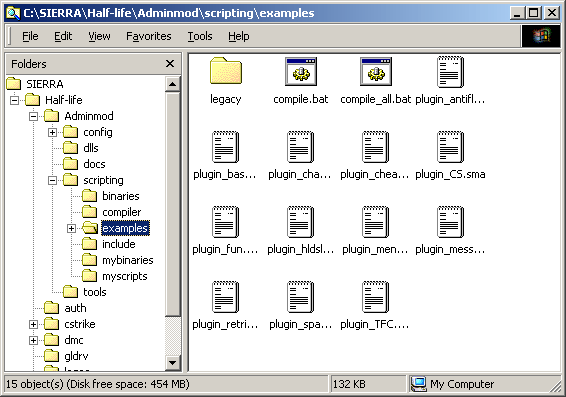
The default scripts come pre-compiled for you and in the correct location, just so long as the files and folders were unzipped properly. If you do not have the script files compiled ahead of time, or if they are not in the appropriate folder (Adminmod\scripting\examples), the above window will pop-up. As explained in the window, you simply need to run the file named compile_all.bat in the Adminmod\scripting\examples folder. Doing this will - of course - compile all of the scripts so they are ready to use. The image below shows the location of that folder in the Windows Explorer view.
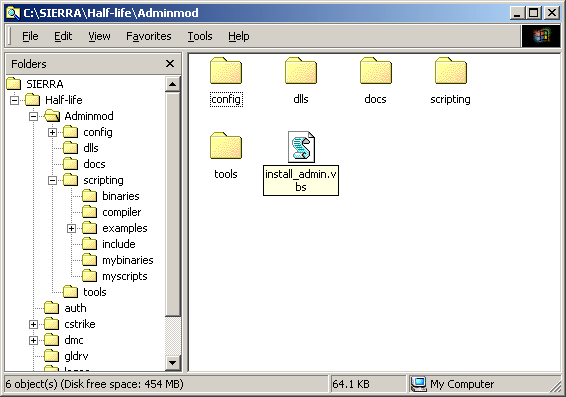
Once you have the scripts compiled, run the install_admin.vbs file located in the \Admin folder. The image below shows the location of install_admin.vbs:
If everything has been unzipped to the right location and the installer is able to locate all the files it requires for installation it will prompt you with the message below.
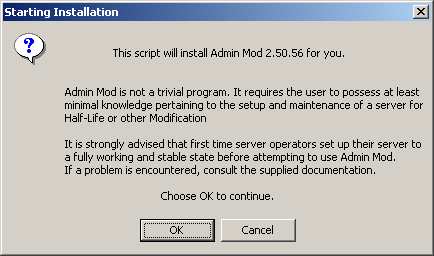
If you chooose cancel the script will stop, nothing will have been installed and you can go about your business.
If you choose OK you will be asked whether or not you wish to let the script
read your registry.
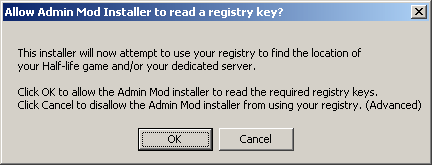
It is reccomended that you allow the script to look for Half-Life installations on the machine because it makes installation much easier, but of course if you decide not to allow the registry to be read you can still continue.
The script is capable of finding registry keys
for Normal Half-life, Retail CounterStrike and Half-Life Dedicated server
installations.
Most users will have only a single Half-Life or Retail
Counter-Strike installed. You will be prompted to confirm that you wish to install
to the location found in the registry. Read the message which will look something
like the one in the picture below and take your choice.
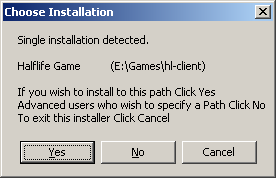
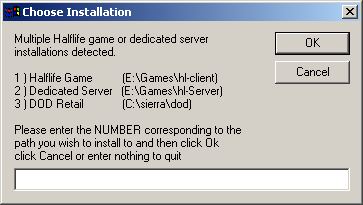
If you have multiple Half-life, Retail Counter-Strike,
dedicated server dod or other installations you will be asked which of them you wish to install
to. Simply input the NUMBER (not the path or the folder name) for the one you wish to install to, then press OK.
The form of this choice is show below.
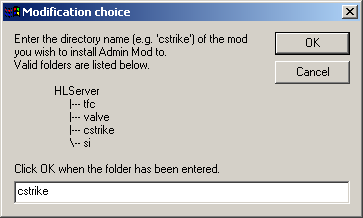
Now the installer knows where you want to install Admin mod to it needs to know which Mod you want to use it with. This dialog shows you a list of the mod folder which can be installed to. If the mod of choice is not on this list then the script cannot install to that Mod and you will have to perform a manual installation (details are included later in this manual).
Simply choose the Mod folder that corresponds to the Mod you wish to use Admin with and type in it's name from the list. For example in the picture below I have chosen to install to Counter-Strike so in the text area I have put "cstrike". Had I wanted to install to Team Fortress Classic Mod I would have put in "tfc". Normally it is quite simple to work out the Mod name from the folder names.
The installer now copies across the Admin Mod files
to the correct folders in the Mod directoy. It changes the Mod liblist.gam file
so that metamod will be loaded when the server starts (metamod loads admin and
then loads the gamedll, don't worry about it). The installer also appends the line
exec addons/adminmod/config/adminmod.cfg
to the server.cfg and listenserver.cfg files if they are found. This ensures that
the adminmod configuration settings stored in the adminmod.cfg file are executed
when either the dedicated server or listenserver is started.
|
Upgrade installations
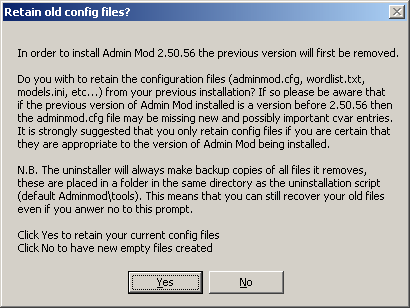
If you are installing over an older version of Admin Mod you will be asked if you wish to retain your old configuration files. In some cases this is not a good idea because your old files will not contain any Cvars introduced in the new version.
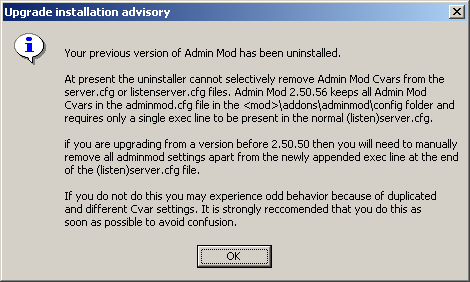
You will also be warned about changes in configuration that could cause you problems unless you are careful. This dialogue is shown below, it is advisable that you take notice and do as it says if you see it.
|
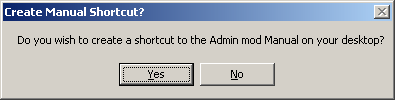
You should now be asked if you wish to create a shortcut to the manual on your desktop, this is a good idea for new users because will will be needing this reference quite a lot to begin with, simply make your choice between yes or no.
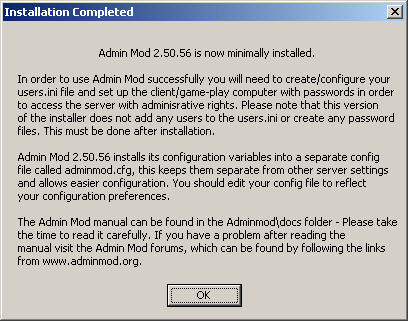
Now providing that no errors have occured in this process the installation is complete and you should see the message below.
So what's Next???
Those of you who have installed Admin mod before will notice a change in the installer. It no longer sets up a default user for you. This is because it really isn't the job of the installer to configure servers and while it may help some people it may be of hindrance to others. Unless you need to know how to uninstall Admin mod or how to set up a MySQL version of Admin Mod you should now skip ahead to the section of the manual that deals with configuration.
A number of tools are now available for Admin Mod. On the downloads section of the Admin mod you can find Karel's Admin Mod Configurator which many first time users find to be of great help.
There are other tools available but these are not hosted by the Admin Mod site, they can be found by looking in the tools section of the support forums or by searching the internet.
There are other smaller tools provided with Admin mod which can be found in the admin\tools directory. Currently these include:
Note that not every problem can be resolved in this documentation, but we suggest strongly that you look here first. If you have problems you can't solve after reading this manual - and that does happen - please ask your question in the forums at http://www.adminmod.org. Please do not email your questions to the team directly, as we cannot guarantee we will be able to respond to individual emails in a timely fashion.
Next: Setting up your .cfg and the *.ini files